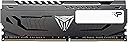
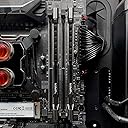
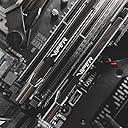
⚡ Upgrade your rig with Patriot Viper Steel — where speed meets sleek, stable power!
The Patriot Viper Steel DDR4 RAM 8GB module delivers 3200MHz high-speed performance with CL16 latency and energy-efficient 1.35V operation. Featuring a custom aluminum heat spreader for superior thermal management and XMP 2.0 support for easy overclocking, it’s rigorously tested for compatibility with the latest Intel and AMD platforms. Designed for gamers and professionals seeking reliable, fast, and stable memory, it comes with a limited lifetime warranty to ensure lasting confidence.


| ASIN | B07N3XZ97B |
| Additional Features | High Performance |
| Best Sellers Rank | #114 in Computer Memory |
| Brand | Patriot Memory |
| Column Address Strobe Latency | CL16 |
| Compatible Devices | PC |
| Computer Memory Size | 8 GB |
| Customer Reviews | 4.6 out of 5 stars 12,861 Reviews |
| Data Transfer Rate | 3200 MHz |
| Form Factor | DIMM |
| Global Trade Identification Number | 00814914025505 |
| Item Type Name | DRAM |
| Item Weight | 48 Grams |
| Manufacturer | Patriot Memory |
| Memory Speed | 3200 MHz |
| Model Name | PVS48G320C6 |
| Number of Pins | 240 |
| RAM Memory Technology | DDR4 |
| RAM Size | 8 GB |
| Special Feature | High Performance |
| UPC | 814914025505 |
| Unit Count | 1.0 Count |
| Voltage | 1.35 Volts |
| Warranty Description | Limited Lifetime Warranty |
A**E
Solid build - No RGB nonsense
Upgrading my PC with this Patriot Steel DDR4 RAM was a bit of a rollercoaster. When I first installed it and powered on, I got an error that made me think the RAM was faulty. My heart skipped a beat! Turns out, silly me—I put the RAM in the wrong slot. Once I fixed that, everything fired up perfectly. Going from 16GB to 32GB was a massive jump. My computer now runs lightning fast, and I can have way more browser tabs open and multitask like a champ without slowing down. If you’re looking for a reliable RAM upgrade that seriously boosts performance, this Patriot Steel kit is the way to go — just double-check your slots before panicking like me!
J**A
How To Get Better Timings Than DOCP/XMP
Just a forewarning to anyone looking to buy this kit is to make sure to check your motherboard manufactures QVL of compatible RAM. check the part numbers for example this kit "PVS416G440C9K" and check if its there. for peace of mind if you want to play it safe. I purchased this kit anyways even though its not in the QVL. but that doesn't mean you can't run it :D testing results are done by a complete novice (me) and will verify soon in forums if they are done right for now its just a typical amazon review. I had a lot of fun benching this kit to find the right timings for a few profiles on my daily rig. There were tons of trials and errors cold booting double booting no boot etc. all while learning how timings work. took a few days/nights trying to find the right sweet spot for my system, While trying to stay within the memory controller limits, hopefully its enough to utilize this kit. Here are my results. Tested PC Parts CPU - Ryzen 9 3900x OC 4.3ghz on all CCX's Cooler - Noctua NH-U12S (push/pull on NF-12 fans) Board - Asus TUF x570 Plus Wi-Fi bios rev. 1407 ( memory kit is NOT in the motherboard QVL) GPU - Nvidia GTX 1060 6gb (doesn't really matter for this test) Case - Lian Li Lancool II PSU - EVGA 850 G5 Storage - Corsair Force MP600 Tested Profile: CPU Setting - Ryzen Master on Manual OC @ 4.3 1.28v on all CCX's Manual (D.O.C.P. Off) - CL15 3800Mhz 1.45v FLCK1900 (15-15-15-26-CR1) Memtest86 - 900%/1500% pass 0 errors stable on all 16gb (proof with intel burn test/pictures) Aida64 - Memory Read/Write - Hovers around 57000-576000 latency is around 7.2ns avg DRAM Calculator - Tested using internal memtest/latency check and fine tuning Thaiphoon - Module Verification - Read the Kit and report, Then scroll down and click "view delay in nanoseconds" and then Export to .HTML so that you can finally get the proper timings in DRAM Calculator **Use this program to find the delay/latency and to import the DOCP/XMP to DRAM Calculator** Summary: Amazing kit that clocks FAST. I was scared to buy this kit at first because its not in my motherboards Qualified Vendor List (QVL) furthermore I was looking at the voltages on the kit themselves, Which they state are rated to go 4400Mhz @1.48v I would say its fairly high for daily use. Normally should be around 1.35v is what everyone says, but I will test it out in the long run @ 1.45v. I ran MEMtest86 overnight with a 0 errors and a 1500% pass so I would say its stable that this profile. I will try to test for higher frequencies another day, maybe 4200? Overall I am satisfied with how this kit performs. I would definitely get another set if I could.
O**W
These are fast and reliable if you have supporting hardware!!!!!
I Bought: Patriot Viper Steel Series DDR4 16GB (2 x 8GB) 4400MHz Performance Memory Kit - PVS416G440C9K 1) Supporting HW. 2) What I achieved. 4) Problems I encountered. 5) How I did it. 6) I will post back in one month to give my one month feedback. 1) So first of all here is my "supporting" hardware: Asrock Z370 Extreme 4 Mother board. ("Capable of 4133+OC Ram") i7-8700k CPU OC @ 5Ghz 2) Second here is what I was able to achieve: 4000Mhz @ 15-15-15-35 CR2 **With my "supporting" hardware** 3) At first I couldn't get the ram to boot over 3000Mhz, like at all! But I did adjust timings to 12-12-12-32 CR2 @ 3000Mhz and probably could have gone lower on the timings! 4) How I Managed to get it to run at 4000Mhz. **Please follow all of these steps to a T!!** If you skip any of these OR do them out of order it can result in damaging your hardware, My instructions are safe but please overclock at your own discretion... NOTE: I THINK ASROCK MOTHERBOARDS PRIMARY RAM SLOTS ARE A2 B2!!! I was unable to achieve 4000GHZ prior to trying this out. Try my guide first then try swapping ram to A2 B2 slots. 1 - Reset CMOS to restore bios default, in my case I HAD to use the CMOS reset method. Simply resetting to default settings in the UEFI Bios menu **DID NOT WORK.** (NOTE: Sometimes the CMOS Battery is located behind the Graphics card.) This will require you to power off your pc so save this review in a screenshot on your phone. Once you have successfully reset the CMOS and have default Bios proceed to step (2) ***DON'T OVERCLOCK YOUR CPU FIRST! START WITH THE RAM!*** 2 - Set BLK frequency to 100 if it is not already set to 100. Make sure you're in DRAM settings and not CPU settings. If BLK frequency says 45, 43, 48, 37, or 50 you're in CPU settings... They should be linked but you need to be in DRAM settings. 3 - Start at 4000Mhz for speed, set DRAM speed or "frequency" to "4000" or 4000Mhz, whatever option it gives you start at 4000Mhz if you do not see 4000 as an option but see odd numbers like 4016 it's because your BLK frequency is set over or under 100.00. 4 - Set ALL other DRAM settings to "Auto"! If they aren't already? Manually type in "Auto" **********This is the most important step in order to keep things from going poof or zap.********** **********This is the most important step in order to keep things from going poof or zap.********** **********This is the most important step in order to keep things from going poof or zap.********** 5 - THE MOST IMPORTANT STEP Find voltage settings, (May be in CPU settings etc just find VCCSA VCCIO voltage settings) Set DRAM Voltage to 1.35, UNLESS you have an XMP profile that says it uses 1.45 If you see an XMP profile that says it uses 1.45 then Set the DRAM voltage to 1.45 this will be safe. MAKE SURE VCCSA Voltage settings are set to 1.15~1.30 **NOT SET TO AUTO** To Start, Set to VCCSA to (1.2) SET System agent voltage 1.10V~1.35V Start at 1.2 MAKE SURE VCCIO Voltage settings are set to 1.15~1.30 **NOT SET TO AUTO** To Start, Set to VCCIO to (1.2) Navigate to "exit", -> Save changes -> and reset. **IF** it boots to windows and runs congratulations you have a starting point at 4000Ghz. Proceed to step (W) **IF it doesn't boot, blue screens, crashes, or enters vicious boot loop, enter bios for adjustments. Proceed to step (X) **IF** you are unsuccessful at entering bios, power down machine and repeat steps 1-4. Then Proceed to step (X) before saving and resetting. STEP X: You can try increasing DRAM voltage from 1.35 to 1.4. You can try increasing VCCSA, VCCIO, System agent voltage to 1.25, if this fails you can attempt 1.3 if that fails, You need to lower the DRAM Frequency from 4000 to 3800 and repeat until you have a starting point. STEP W: Ok, we have a starting point, now we can adjust our timings! **IF** you had instant success at hitting 4000Ghz, set your timings to 15-15-15-35 CR2 And attempt boot. If this works, lower until it is unsuccessful at boot and revert back to the lowest successful post. Fine tune for stability and run tests to ensure your configuration is successful. Now you can overclock your cpu. **ELSE** Start by setting your timings to 19-19-19-39 CR2 And attempt boot. If this works, lower until it is unsuccessful at boot and revert back to the lowest successful post. Fine tune for stability and run tests to ensure your configuration is successful. Now you can overclock your cpu. If this doesn't work Revert back to "Auto" in all the timing settings, boot into windows, install CPU-Z from CPUID Navigate to the -> memory tab and write down values for: CAS# latency (CL) RAS# to CAS# delay (tRCD) RAS# Precharge (tRP) Cycle Time (tRAS) Row Refresh Cycle Time (tRFC) This is your starting point. Extra info: VCCSA, VCCIO, increase to 1.3 MAX (1.35 for the F it folks) 1.5 is Max capable for VCCSA, VCCIO but seriously don't go past 1.3. for fine tuning set a lower Command Rate (CR) 440 for example, research and fine tune the other settings you have available to you!
D**.
Great, even for idiot beginners
I don't know much about RAM and this was my first build, so I was nervous about making this purchase after reading other reviews. But I really liked the sleek, no-RGB look here and it seems like these are much cheaper than RAM of comparable speeds from other brands. I bought 2x8gb 4400mHz. The negative reviews appear to focus on the cheaper (lower speed) end of the lineup and it looks like this could be related to a manufacturing difference between the 4000+ speeds and the rest. As I said, I don't know much about RAM. All I can say is that these look great and when I plugged them into my Aorus x570 Master motherboard, I simply set the voltage and the XMP profile and they instantly worked. No hassle, no stability issues. If you are a beginner like me I really recommend giving this RAM a shot—just remember to make sure your motherboard can handle them, especially if you're on the Ryzen side. Very happy with my purchase.
M**1
Initial impressions...I like them...alot!
I'm pretty happy so far. I was running G.Skill Trident Z NEO rated at 3600mhz at rated timings, 16/19/19/19 and they happily played along with all my CPU overclocking set at XMP2. Didn't seem to have any issues running at 4000mhz either (but realistically not worth it with infinity fabric and looser timings, etc.). Wanted to see what 4400mhz looked like so I purchased these. I had also picked up some Crucial Ballistix 3600mhz at 16/18/18/18 for fun and need a few kits since I'm building another PC so more kits available is all the better. One thing I notice with all the reviews (for all memory) is that they seem to be all over the place and some folks don't seem to grasp that you need to enable the overclocking profile in the BIOS with all of these overclocked kits, regardless of brand. READ about memory before you go swapping it out and understand, at least just a little, before ripping on any new hardware? Please? Any which way I threw in the Crucials first...and before I did that, I reset the BIOS to optimized defaults with the existing memory. Reboot to desktop. Make sure everything is fine and then shut down. Disconnect your power. Swap kits. Reconnect power. Reboot. Motherboard will recognize the change and allow you to go into the BIOS. Once there just leave everything at default (other than checking to make sure memory is running at its lowest rating, usually 1033mhz). Boot to desktop. Run a test. Make sure things are functioning as they should. Check the RAM timings with CPU-Z or something similar. My Crucials defaulted to 1333 (2666), a little different than I'm used to, but in any case, they booted fine to desktop. Ran Cinebench without issue. Rebooted and set XMP2 in BIOS. Experienced a bit of a hiccup...hit my reset after about 45 seconds to a minute and it posted and went to desktop. The difference from running 16/19/19/19 to 16/18/18/18 was...not much :) I didn't do anything other than run 3Dmark and Cinebech. Since these had the hiccup just booting to the rated settings I didn't feel comfortable exploring and just reset to optimal and shut down. I'm running an MSI MAG X570S Tomahawk MAX WIFI board with an AMD 3700X, NZXT Kraken X63 AIO, Sapphire RX5700XT graphics card and an EVGA 750 G+ PSU. Not the top of the line by any stretch...but I think this MOBO is pretty darned good so far... Now to the actual review of the Patriots...did all of the above and booted to desktop. Ran a test or two. check. Rebooted and switched to XMP2. Rebooted and straight to desktop at 4400mhz at rated timings. No issues, no hiccups. Ran a few tests. No issues...other than 4400mhz doesn't do much! Looser timings at higher frequencies? I'm sure some gamers will have something to say but just for testing/benchmarks it ain't worth it so far as I can see for the moment and just initial impressions. Infinity Fabric at 1800...worth messing with? Perhaps when I get past initial "simplicity"... This particular BIOS has a memory overclock "try it" function so I've tried it. Worked my way from fairly loose 3600mhz timings to 14/14/14/14. 3600mhz with tight timings are working nicely at 1.45v. That's as far as I've gone tonight using some simple pre-sets and I'm very impressed with this kit so far. I've got an AMD 5800X to swap in but wanted to see what this memory does with my current CPU. I think I may dig a little deeper...though I do hate overclocking memory. When things do go bad it can get ugly. I think this memory kit is very good though so far and makes me want to go exploring. My Tridents didn't give me much confidence and certainly with my little hiccup on the new Crucials those don't have much future use other than trying in another motherboard. As of 12/20/2021 I'm very pleased with this kit. This is the 2X8, 16GB kit rated at 4400mhz. It will do the rated speed on my MOBO. Your mileage may vary. But honestly, the tighter timings at 3600mhz have me wanting to go exploring to see how tight these things can run and at what frequencies and what voltage. Don't know if they are the coveted Samsung B die or whatever, but they are Samsung. The G.Skill Trident Z NEOS's are Hynix and the Crucial Ballistix are Micron...for a hundred and 10 bucks delivered, these are my favorites. Now it's time to go to bed or crash my computer (
W**E
Amazing value for very good Samsung B-die
Bought 4 sticks of the 4400CL19 per Buildzoid's recommendation for my 9900K+Z390 Aorus Master setup. One of the sticks could never POST, so I had to RMA with Patriot. But other than that, WOW these are actually FRIGGIN' AMAZING for OC/running with tight timings. Despite not being listed on QVL, I managed to get XMP to run on all 4 sticks (#1 screenshot of AIDA64) but it wasn't always stable, so I clocked it down and instead focused on tightening up the timings. I can now do 4000MHz 15-16-16-32 @1.54V, or 4133MHz 16-17-17-34 @1.5V, both stress tested using Karhu. The first config is even a lil' tighter than G.Skill's F4-4000C15D-16GTRG which runs at 1.5V but looks gaudy and costs way more than double of these Patriots. Performance in Geekbench 4 and 5 are nuts especially when paired with 5.2GHz+Uncore @4.8/4.9GHz Pros: 1. You don't want to overspend on RAM but still want fantastic OC capability 2. Very fun to tweak assuming you have the knowledge 3. Great for both Intel and AMD. With Intel you can chase after max stable freq while with AMD you can chase after very tight timings at 3600/3800MHz 4. Gun metal colourway 5. No RGB tax (cos no RGB) Cons: 1. No RGB 2. No built-in temperature sensor 3. Only one colourway 4. Don't expect to run 4400XMP right off the bat especially if your board uses T-topology 5. B-die likes voltage but also hates high temperature, so without good cooling your OC mileage will suffer
M**A
If at first you don't succeed.......
Make sure to upgrade your mobo and make sure that your previous mobo even had the capability to run this ram at rated speed. Derp I was fuming when I first got the ram. I thought I got robbed due to the price of the ram and it being 4400Mhz speed was a steal. Well I realized that my ROG Strixx B450-I couldn't run the ram at rated speed or anything near it. Wouldn't even boot up some times if the speed was above 3866Mhz. After I had an unfortunate mishap with my previous board I upgraded to the B550 Aorus Master and it runs EASILY at rated speed and timings without any issues whatsoever. Plan to buy another kit and see if I can run 32Gb at 4400Mhz. I imagine not as the higher the capacity the worse the speed gets, but hey if I can get these B-Die to run at 3600 with really tight timings at 32Gb I call that a win. Update 8/5/2020: I purchased another kit and I'm running 32gb of this awesome ram at XMP 2.0 profile 2 which is 4266Mhz. Booted up just fine without any issues whatsoever. Couldn't boot at fastest timing, but I counted on that. I know that the 3900x can't really do anything with the extra speed past 3600Mhz, but it's nice for the system to be able to run at the rated speed. Will work on getting lower timings with 3600Mhz across all 32Gb in the future to see just how much added performance I can get out of my hardware. Update 9/5/2020: After a few bios updates I can now successfully run this ram at the main XMP speed of 4400Mhz without issue. I even tightened the timings with the help of Tech Jesus aka GNSteve and everything flies.
A**N
DDR4 4400 MT/s -Superb, Especially for the Money
Before I get on to the specifics, please keep a few things in mind: 1.) Forget about XMP, this is going to be manual tuning all the way. Probably even on an Intel platform. 2.) If you just want to game or run some other app that requires fast memory with a minimum of hassle, this kit is not for you. 3.) If you have a Ryzen platform, you probably won't get useful performance out of this kit above 3800 MT/s. 4.) Unless you have won the silicon lottery with your specific Ryzen CPU sample, even 3800 MT/s isn't going to happen. 5.) Likewise, even if you have a golden chip. you are going to need some luck with your motherboard. 6.) You should expect to spend hours and hours tweaking and testing to get something usable. If that is not your idea of fun, this kit is not for you. Now, if you are undeterred by all of the above and are still interested in this kit, please read on. The kit comes in some rather plain packaging. Some people are unhappy with this, but I say that the plainer the packaging, the easier it is to recycle, so I am good there. I want my money to go to R&D, quality binned B-die chips, and QA. Not to marketing or packaging. Another complaint I hear about this kit is that the heat spreader is kind of cheap. This is fact. However, fancy heat spreaders are a bit of a scam. Even at high voltage and clock, you are not sinking much more than 5W of power into each stick, so whatever. I would prefer no heat spreader, same binned b-die, same quality PCB, and $1 less for the product. That being said, these sticks are a little on the tall side. Keep this in mind if there might be a clearance problem between your RAM and your tower cooler. If I wanted two kits of this, it would be an issue for me. But since I only want one and the slot nearest to the CPU is unoccupied, I have no clearance issue. I spent hours trying to get these to run at 3800 MT/s, to no avail. It is either the IMC inside my R5 3600XT or my motherboard (MSI B450 Pro Carbon WiFi), not the kit's fault. I had no trouble at all running at 3733 MT/s, and I got timings that were even better than were suggested by DRAM Calculator for Ryzen. I used 'fast' settings, 'A3/A2/B1' for for PCB rev, and (of course) "Samsung B-die' for memory type. I used the exact recommended primary, secondary, and tertiary timings. However, the termination resistances didn't work for me; I went with the board's defaults for those. After testing extensively at 15-15-15-15-30-1T and passing, I went for 14-14-14-14-28-1T. Those passed my quick testing and I am half way through the full battery of MemTest86 as I write this review. I am really, really comfortable with the looser settings and they are giving me everything I want. That being said, I am looking forward to hours and hours more fun tightening down the secondary and tertiary timings to not leave even one cycle of performance on the floor. If I get bored with that, I might be forced to game instead of benching -) For $125 I got a kit of the highest possible bin of B-die memory and it suits me perfectly. You can buy more expensive kits if you need the name "G.Skill" printed on the side, and still more expensive kits if you want that plus RGB. As for me, I don't care about anything except the bin quality and quality time at my bench. I figure I saved somewhere between $50 and $100 making this choice as opposed to the best bin of TridentZ RGB and lost exactly zero performance doing it. That is going to be my down payment on a shiny new R5 5600X as soon as I can get my sweaty little hands on one. Now, if you are still planning on buying these, I have a few quick tips for you to save some time: 1.) Have your bootable USB stick with MemTest86 on it ready before your package arrives. 2.) Use the same stick to save your OC profiles, unless your mobo will retain your profiles after clearing CMOS 3.) Plan on testing outside of your case unless you have a clear CMOS button on your back panel. 4.) For initial testing, cut the address range down to 4G and skip the last two tests, and do two passes instead of four. this will save you a ton of time. 5.) Once you have settings you like, run all tests, full address range over night before using them 24/7. 6.) Start at DRAM voltage of 1.5V. Once you have settings you like, you can experiment with cutting some voltage, if you like. This won't hurt anything and will save you some time upfront. 7.) Enjoy the ride. If this doesn't sound fun, just get a 3600 CL16 kit for $80, boot it in XMP and call it a day. I hope this helps and thank you for reading.
Trustpilot
2 weeks ago
3 weeks ago